

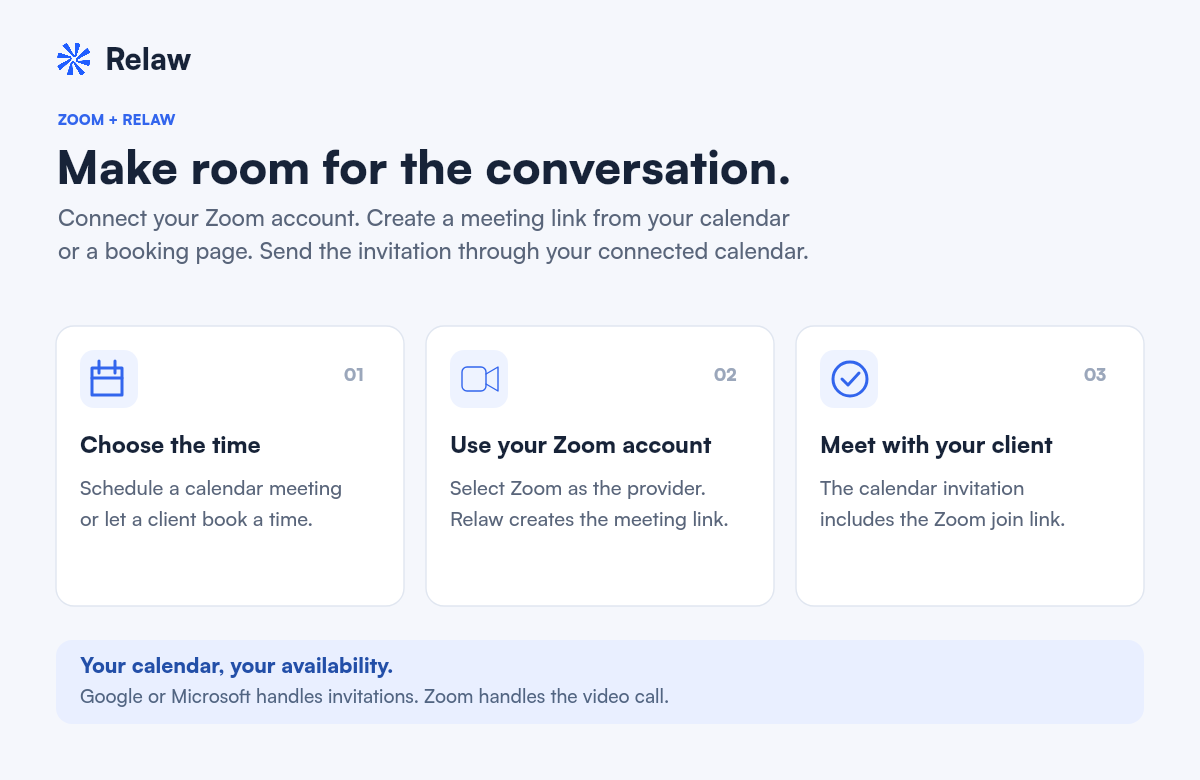
Zoom in Relaw lets you create video meeting links while scheduling from your calendar or accepting appointments through a booking page. Each host connects their own Zoom account and chooses where to use it.
Your calendar and Zoom do different jobs: Google or Microsoft provides availability and sends invitations; Zoom provides the video call. You keep your existing calendar connection when adding Zoom.
Before you start
You need:
- An active Relaw account with access to Settings → Booking & Meetings.
- A connected Google or Microsoft calendar.
- A Zoom account you are allowed to authorize. Your Zoom administrator may need to approve the app first.
- The Zoom integration enabled in your Relaw deployment. If it is unavailable, contact support before proceeding.
Your Zoom plan, meeting limits, and administrator policies still apply. For a team booking page, each assigned host needs their own calendar and Zoom connection.
Connect Zoom to Relaw
- Sign in to Relaw and open Settings → Booking & Meetings. You can open those settings directly.
- Connect your Google or Microsoft calendar if it is not already connected.
- Find Zoom connection and select Connect Zoom.
- Follow the sign-in and authorization screens. Relaw uses Nylas to manage the connection to Zoom. Review the requested permissions and authorize the Zoom account you want to host meetings.
- Return to Relaw and check that Zoom is connected.
The integration requests permission to create, update, and delete meetings on the authorized Zoom account, and to identify that account. These permissions support scheduling; they do not give Relaw every user in your Zoom organization. Nylas manages the Zoom OAuth credentials. Relaw retains the connection reference and meeting information needed for scheduling, such as the meeting's join link and any returned passcode.
Choose Zoom for a booking page
- In Settings → Booking & Meetings, create or edit a booking page.
- Under Meeting details, choose a video meeting or the option that lets guests choose between phone and video.
- Set Video call provider to Zoom.
- Save the booking page, then share its booking link with clients.
When a guest books a video appointment, Relaw creates a Zoom meeting using the assigned host's connected Zoom account. The calendar invitation includes its join link.
For a phone-or-video booking page, a phone appointment does not create a Zoom meeting. For team pages, hosts need an available Zoom connection to receive a Zoom video booking. Selecting Zoom does not silently substitute Google Meet or Microsoft Teams.
If you prefer a reusable meeting URL, use Use an existing link instead. That flow does not require Relaw to create a new Zoom meeting.
Add Zoom when scheduling from your calendar
- Open your Relaw calendar and choose Schedule meeting.
- Enter the title, start and end times, guests, and other meeting details.
- Choose Zoom under Video call provider.
- Turn on Add Zoom, then create the meeting.
- Check the created meeting and calendar invitation for the Zoom join link.
The invitation is sent through your connected Google or Microsoft calendar. You can also paste an existing Zoom, Teams, or Google Meet link when you already have one. Existing meetings keep their saved conferencing links when edited.
Update or cancel a meeting
Manage a scheduled meeting through its normal calendar or booking controls. The integration has Zoom update and delete permissions so it can support changes and cancellations through the calendar integration.
Disconnecting Zoom is a different action from cancelling an appointment. If you want to cancel an appointment, use its cancellation flow and check the calendar for the resulting update. If a connection or provider error interrupts a change, check the existing meeting before retrying.
Recording and the Relaw notetaker are optional
Connecting Zoom and creating a meeting link do not enable recording or transcription. Relaw's notetaker is a separate feature. Enable it separately for meetings where you want it to join, and follow your firm's participant notice and consent process.
A Zoom meeting link can be used without the Relaw notetaker. Disconnecting Zoom also does not remove notetaker recordings or notes already saved in Relaw.
Disconnect Zoom from Relaw
- Open Settings → Booking & Meetings → Zoom connection.
- Select Disconnect Zoom.
- Confirm that the connection is no longer shown as connected.
This stops new Zoom meeting creation for that host and keeps their Google or Microsoft calendar connected. Existing meetings remain scheduled. Existing calendar invitations, Relaw meeting records, and saved notes are not automatically deleted.
To remove the authorization from Zoom, sign in to the Zoom App Marketplace, open Manage → Added Apps, find Relaw, and select Remove. Zoom administrators may manage app access for their organization.
To use Zoom again later, reconnect the intended account in Relaw. To request deletion of retained account data, contact Relaw support and review our Privacy Policy.
Troubleshooting
Connect Zoom is unavailable
Connect a Google or Microsoft calendar first. If Relaw says the Zoom integration is not yet available, contact support; the integration must be enabled in your deployment. A working calendar connection alone does not authorize a Zoom account.
Zoom does not appear as a video provider
Check the host's Zoom connection in Booking & Meetings settings, then reopen the booking page or meeting editor. Team pages require the assigned hosts to connect their own accounts in the correct Relaw workspace.
Zoom blocks authorization
Check whether your Zoom administrator requires app approval. If Zoom rejects the app or its redirect URL, send the exact error text to support. Do not change redirect settings in an attempt to connect your personal account.
Zoom was disconnected, expired, or revoked
Select Reconnect Zoom, authorize the intended account, and refresh the booking page or meeting editor. If you changed accounts while an editor was open, reopen it before saving.
A meeting link could not be created
Check the host's Zoom account status and calendar connection. Review the calendar before retrying so you do not create a duplicate appointment. If it continues, contact support with the error message and the approximate time of the attempt.
Frequently asked questions
Do I still need to connect a calendar if I use Zoom?
Yes. Your Google or Microsoft calendar provides availability and sends invitations. Your separately connected Zoom account provides the video meeting link.
Does connecting Zoom turn on recording or the Relaw notetaker?
No. Creating Zoom links does not enable recording or transcription. The Relaw notetaker is a separate, optional feature that you enable for meetings where you want it to join.
Does disconnecting Zoom cancel existing meetings?
No. Disconnecting stops new Zoom meeting creation for that host. Existing meetings, invitations, and saved Relaw meeting records remain. Use the appointment's cancellation flow to cancel a meeting.
Get help
Email hello@relaw.ai with your Relaw account email, the action you attempted, the error text, and the approximate time it happened. Please leave passwords, client secrets, access tokens, and confidential client details out of your message.